
Project Settings
GraphScribe's options live under Project Settings → Plugins → GraphScribe.
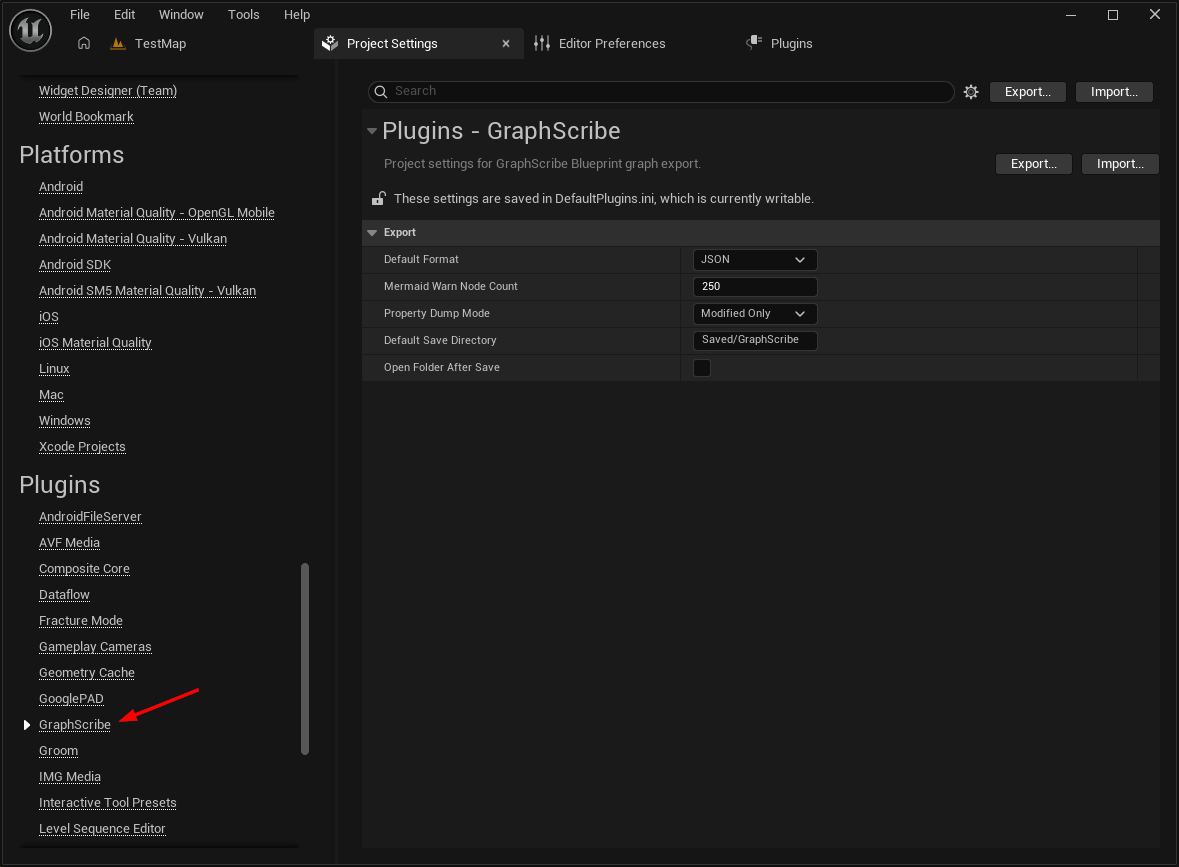
| Setting | What it does | Default |
|---|---|---|
| Default Format | Which format is pre-selected when you open the export dialogs. Picking a format in a dialog updates this. | Markdown |
| Mermaid Warn Node Count | Warns you in the export dialog when a Mermaid diagram has more than this many nodes (large diagrams get hard to read) | 250 |
| Property Dump Mode | How the reflected CDO / DataAsset property dump is collected (see below) | Modified Only |
| Default Save Directory | Where exported files are written by default (relative to the project directory) | Saved/GraphScribe |
| Open Folder After Save | Whether GraphScribe opens the output folder in your file explorer after each export | Off |
Property Dump Mode
Every export includes a reflected property dump. The actual property defaults stored on the asset (DataAsset instance or Blueprint CDO). These rows appear in the Variables sections and drive the cls: class-reference linkage. The mode controls how much inherited content that dump contains:
- Modified Only (default), properties declared on the asset's own class plus inherited properties whose value differs from the direct parent class defaults (the editor's definition of "modified"). Containers are compared element-wise and instanced subobjects deeply, so exports show what this class actually changed. Untouched inherited
TSubclassOf/TSoftClassPtrreferences produce nocls:usesedges. - Full, every
Edit/BlueprintVisibleproperty, including inherited engine properties. - Blueprint Only, only properties declared on the asset's own class (no inherited properties at all).
The chosen mode is stamped in JSON and Graphify output as the optional dumpMode root field (full / modifiedOnly / blueprintOnly), so consumers can tell why a dump is sparse. See Schema & Stability.
What the other settings mean in practice
- Default Format, pick Markdown if you mostly write docs, or Graphify if you mostly build AI graphs. You can always switch formats in the dialog, so this is just a convenience.
- Mermaid Warn Node Count, Mermaid is great, but a flowchart with hundreds of nodes is hard to read. If a diagram exceeds this count, the export dialog shows a warning suggesting Markdown, so you know to narrow the scope.
- Default Save Directory, set this once to a stable location (for example
Documentation/GraphScribeinside your project) so exports always land in the same place. That makes it easy to diff them in git or feed them to tooling. The batch export dialog pre-fills its Output directory from this value. - Open Folder After Save, turn this off if you export frequently and find the file explorer popping up annoying.
Tips
- Keep the Default Save Directory inside the repo if you want exported docs to show up in pull requests, that's the main way teams review Blueprint changes.
- If you work with AI agents, point them at the save directory once, then re-run folder exports as your project changes. The Graphify IDs stay stable, so the graph stays useful.