
Ways to Export
There are four ways to export with GraphScribe. Start with whichever matches what you're doing.
1. Export a single asset
- Open a Blueprint or Widget Blueprint → click GraphScribe in the toolbar → the export dialog opens with a live preview → Copy or Save As....
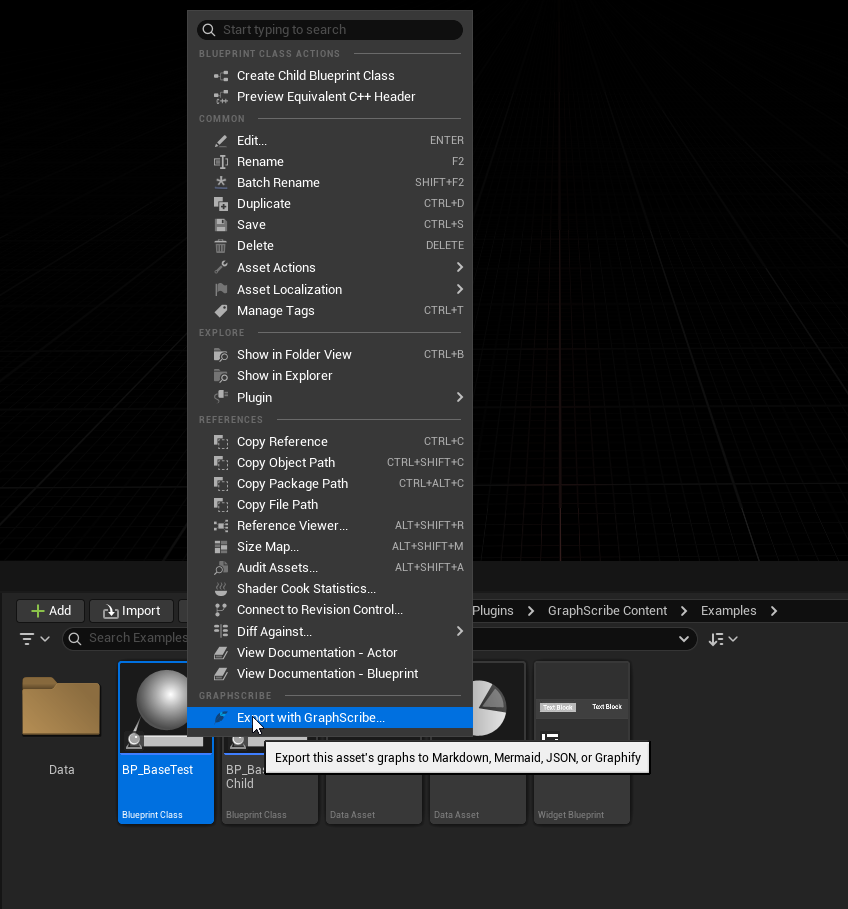
- DataAssets don't have a Blueprint toolbar: right-click the asset in the Content Browser → Export with GraphScribe....
- Works on Blueprints, Widget Blueprints, and DataAssets.
2. Export selected nodes only
Sometimes you only want part of a graph, a snippet for a PR, a doc, or a question.
- Select some nodes inside a graph.
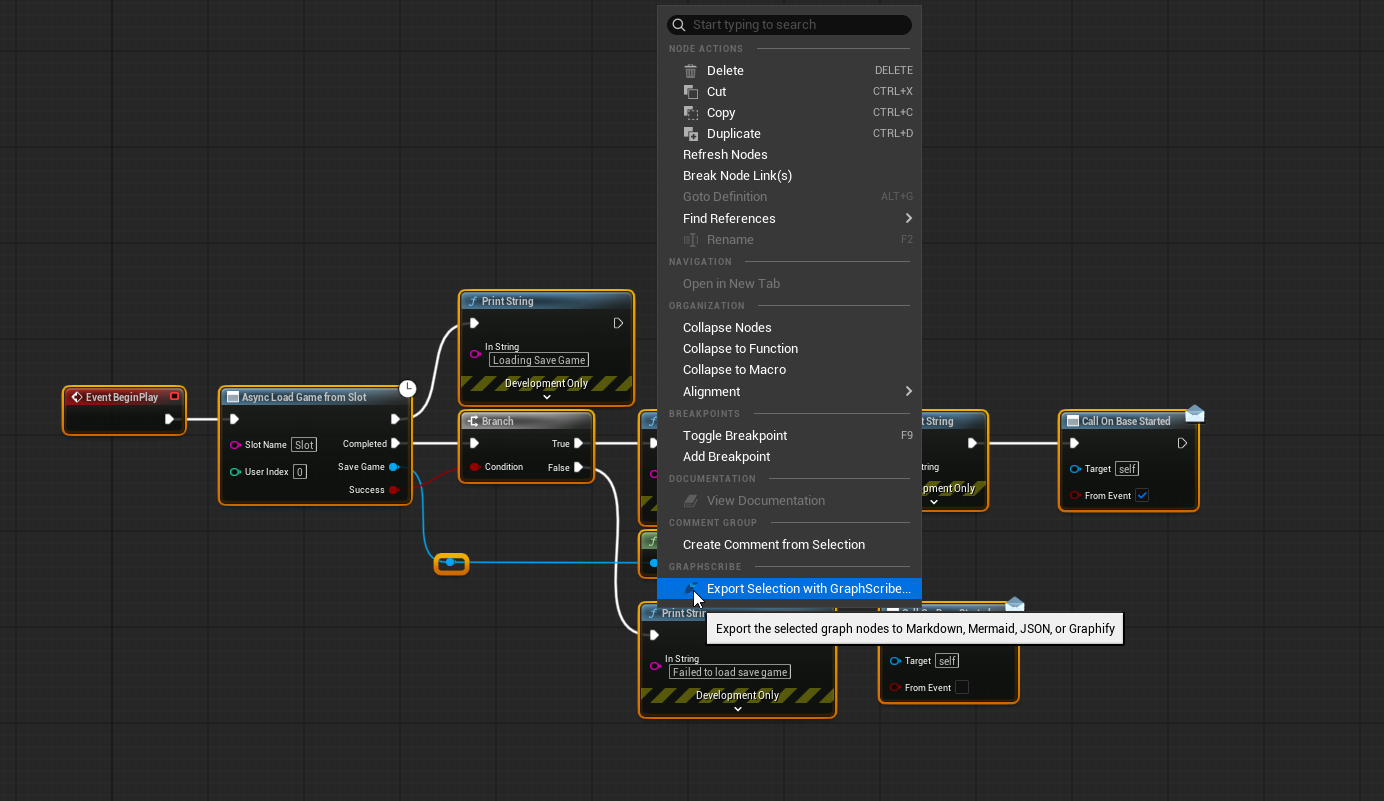
- Right-click → Export Selection with GraphScribe...
Snippet exports are smaller and focused:
- they include the selected nodes plus the owning function's entry,
- collapsed composite nodes expand to include their inner graph nodes,
- they intentionally omit variables, widget trees, and class references.
3. Export a whole folder
This is the option for documenting a feature or your whole project, and the mode you'll use most with AI tooling.
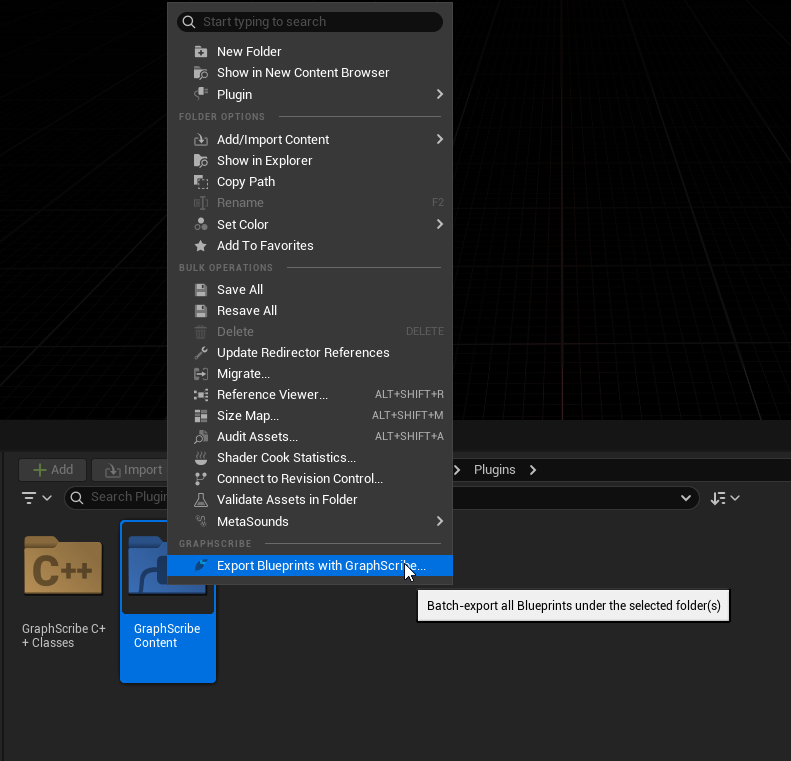
- In the Content Browser, right-click one or more folders → Export Blueprints with GraphScribe....
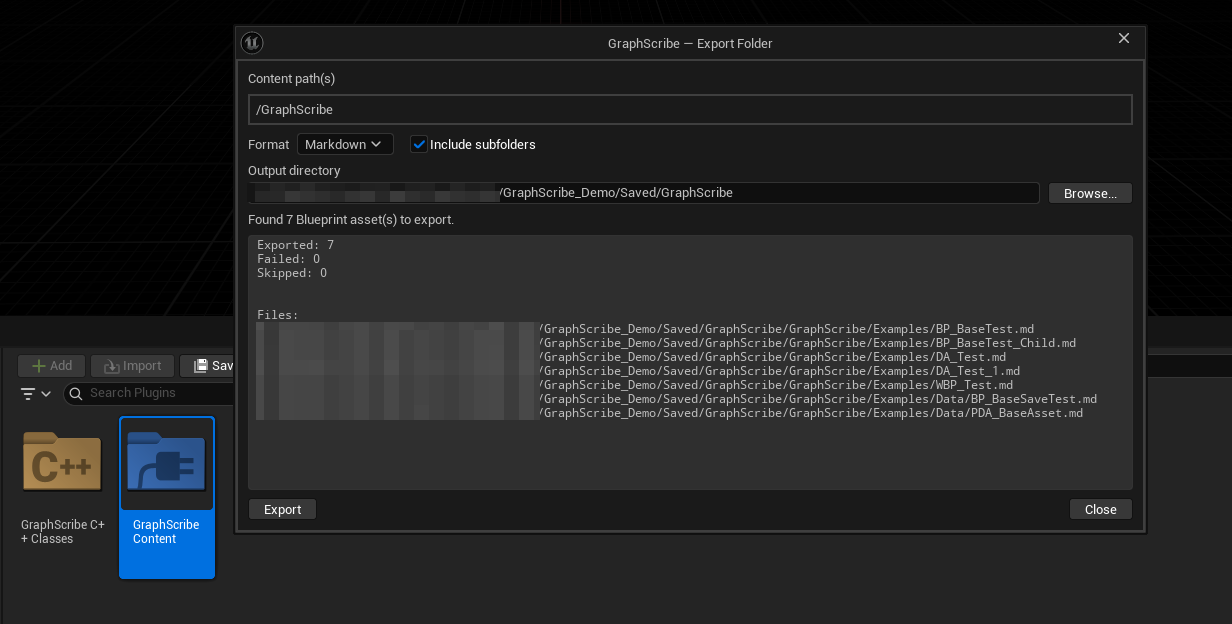
- A batch dialog (GraphScribe Export Folder) opens showing:
- the selected content path(s),
- the Format combo,
- an Include subfolders checkbox (on by default),
- a live count, Found N Blueprint asset(s) to export,
- the Output directory (pre-filled with your configured save directory) with a Browse... button.
- Click Export. GraphScribe exports every supported asset with the selected format and writes a log (
Exported:/Failed:/Skipped:counts, skipped assets, and every written file) plus a toast notification.
Notes:
- Output files mirror your Content structure:
/Game/Foo/Bar.BP_X→<Output Directory>/Foo/Bar/BP_X.<ext>. - DataTables are never gathered, Blueprints that can't be exported (e.g. interface/macro-only assets) are listed under Skipped.
- If you chose Graphify, the run also rebuilds
ProjectLinkage.graphify.jsonat the root of the output directory, a single project-wide graph merged from every*.graphify.jsonalready under that directory (so folder-by-folder exports accumulate). See Graphify: AI-Ready Graphs.
Where do files go?
- Single asset: you choose the location in the Save As... dialog, pre-filled with the directory configured in Project Settings.
- Folder batch: the Output directory field in the batch dialog (pre-filled from the same setting).
- Selection: same as single asset.